
Applications
Applications are hosted on our clusters. An application can handle everything you would expect from one, frontend, backend, input, output, streams etc. In mochabug Adapt you don’t connect endpoints, you connect complete applications.
Organizational applications
Section titled “Organizational applications”Applications developed by your organisation are private to your organisation by default. When you upload your self-developed applications in your tenant they become available in your whole organisation to be used in projects and deployments. Head down to our developer-section for more information on how to build and manage your own applications.
Public applications
Section titled “Public applications”On our application marketplace you will find applications that are developed by us at mochabug, our partners, customers or anyone that’s up for it.
Installing public applications to your organisation
Section titled “Installing public applications to your organisation”When looking for a certain application press Explore in the menu to the left and search for available applications.
Press the application you want to install to enter the application overview, where you will find more information about the author, readme, vertices etc. To install it press “Install application” in the top right corner and it will install the latest version on your organisation.
Managing applications
Section titled “Managing applications”In manage all applications installed on your tenant will show up, if you have more than one version installed of the same application they will show up more than once. In this area you can update, delete as well as manage services.
Updating applications
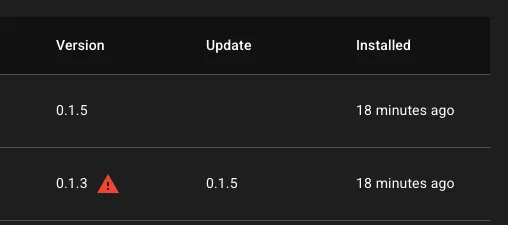
Section titled “Updating applications”An application that needs updating will have it’s update column with the newest available version. You can choose to update applications on a couple of different levels.
- Bulk update all applications
- Update only selected applications
- Update applications in individual projects
To bulk update all applications, press the checkbox on top of the table listing all applications and press update button on the bottom of the page
To Update only selected applications, select the applications you would like to update by pressing the checkbox and then press update button on the bottom of the page
To Update applications in individual project, press the application you would like to update. Select what workspace and/or project you would like to update the application in and press the update button on the bottom of the page
Deprecated applications
Section titled “Deprecated applications”The application author can choose to deprecate different versions of an application. When that happens you need to upgrade to a later version and that applications will be flagged in the list.

You can still use it and configure it in projects as you please, however it can no longer be installed on a new tenant and may no longer be supported by the applications author.
Deleted applications
Section titled “Deleted applications”The application author can choose to delete different versions of an application. When that happens you need to upgrade to a later version or replace that application with a new one. Deleted applications won’t automatically be in a project and deployment. Your deployments will still continue to work. However you can’t copy or create new vertices in the graph of a deleted application.