

Deployments
When a project is ready to be deployed and go live you publish it as a deployment, automatically the deployment will receive a version. In the deployment you can fetch code examples for embedding in a client, define settings, start/stop sessions etc.
The whole project is then built and shipped as one complete unit with credentials and everything baked in. Which means that even if you do changes to a project the changes won’t affect what has been published until you publish the project again.
Deployment groups
Section titled “Deployment groups”Every deployment is stored within a deployment group. Currently they have no bigger purpose than being a way to organise your deployments in a way that makes sense for you, like a folder.
Start a session
Section titled “Start a session”For deployments running in the background etc. You can simply press the button START SESSION To start a session manually.
Embedding in a client
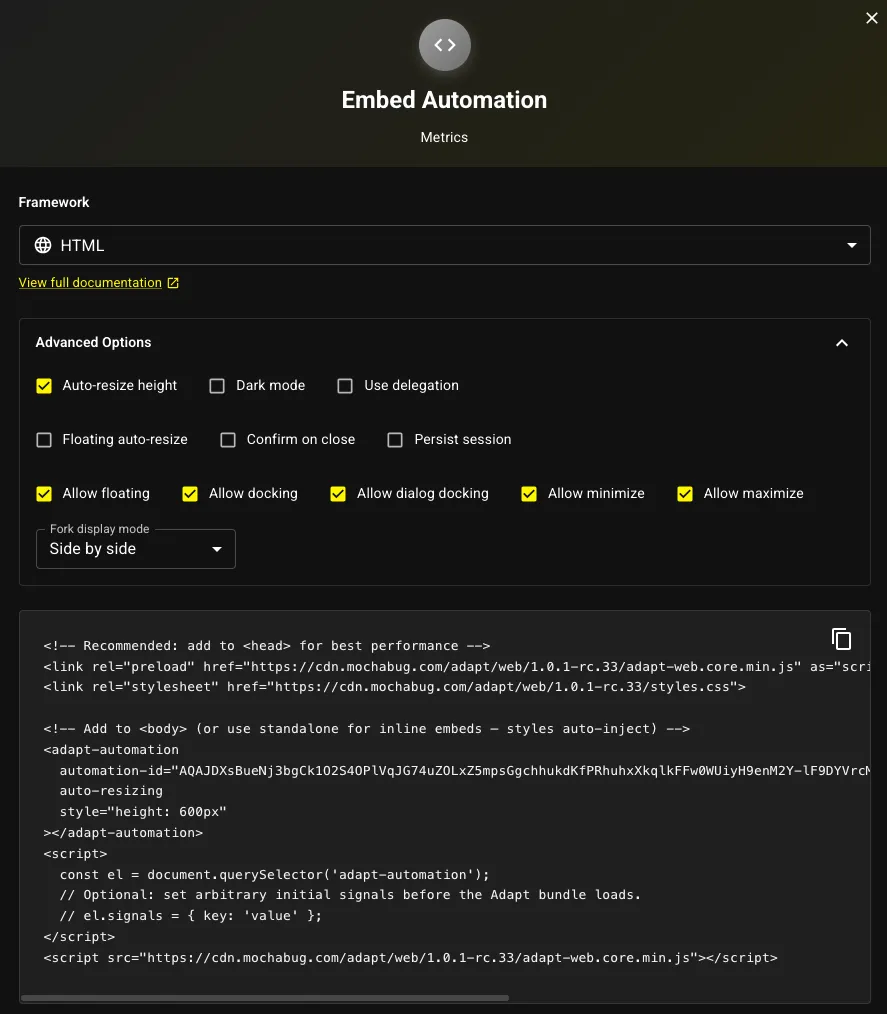
Section titled “Embedding in a client”For deployments with UI the deployment needs to be embedded in a client to function properly. By pressing <> GET CODE you can choose what framework you are working with select options and simply copy pasting the code. For some of the code you might want to install the corresponding npm package.
Public ID
Section titled “Public ID”Every deployment has a unique public ID, this ID is persistent and does not change over time, even if you were to publish a new project and overwrite the current deployment.
Settings
Section titled “Settings”In a deployment you have multiple settings controlling who and what can access it, session limits etc. you can access the settings by pressing the cogwheel in the top right corner.
General
Section titled “General”Here you set name and description of your deployment. The name and description is for you and your organisation. The name won’t affect the deployment itself.
Session limits
Section titled “Session limits”In this section you define different session limits
- Max Sessions
- Max forks
- Session TTL (time to live) in seconds, 0 = infinite
Each session has a maximum Session TTL, you can run a total of Max Sessions concurrent sessions and each session and have a total of Max forks concurrent forks within a session.
In case you hit the ceiling of session limits current or new sessions will be receiving a 429 error, resource exhausted.
Stop policy
Section titled “Stop policy”This defines in what ways you are allowed to stop a live session, through the API.
- Not allowed
- Allowed
- UI Node Only
Access control
Section titled “Access control”By default a deployment has very limited access controls.
Allowed origins
Section titled “Allowed origins”Define which origins that are permitted to make cross-origin requests to this service. Only origins in the list will be allowed to call your deployment. You can use *, https://*.example.com as a wildcard domain.
Leaving this empty will block all requests by default.
Authentication required
Section titled “Authentication required”Something something about authentication and session bearer tokens…
Proof of work required
Section titled “Proof of work required”When embedding a deployment on a public website to limit bots from accessing you can enable Proof of work it’s our own privacy focused check to gatekeep your resources from being used. For internal tools this could be something you would like to be left switched off.
Danger zone
Section titled “Danger zone”This is where you can choose to permanently delete the deployment, deleting the deployment won’t delete the project that was used to publish the deployment.
Sessions
Section titled “Sessions”This is where you can see the currently active sessions, what version they are running, status and session ID.
There are cases when you might want to stop a live session manually. This is done by selecting the sessions you would like to stop and pressing Stop selected in the top right corner of the table.
This will force stop the live session.
Republishing
Section titled “Republishing”When a deployment needs to be changed, the changes are done in the project just like normal and when that’s done you simply publish the project again and overwrite your current deployment, then newest version will receive a new version number automatically. The existing live sessions will continue on the old version of the deployment, new sessions will automatically go on the new version. This enables an always on release behaviour, even if a project is completely rebuilt.
Republishing a project does not affect any deployment settings or the public ID.