

Local emulator
The emulator is a local copy of Adapt for one application. It runs in Docker. You configure your vertices, run them, use their pages in an iframe as Adapt shows them, and inspect their logs, requests, outputs, and resource use.
When to use it
Section titled “When to use it”| To check | Use |
|---|---|
| Logic and request handlers | Node.js unit tests |
| How pages look and behave | npm run dev, with the mock API |
| The real runtime, tokens, services, the Adapt iframe, webhooks, and resource use | The emulator |
The emulator runs one application, and one vertex run at a time. It records each vertex’s outputs, but does not run the rest of the graph.
Before you start
Section titled “Before you start”- Docker Desktop, or Docker Engine on Linux, running.
- mkcert. On macOS,
brew install mkcert nssalso covers Firefox. - Adaptkit.
Then let your browser trust the emulator’s HTTPS certificates. Do this once, as your normal user, without sudo:
adaptkit emulator setupIt can ask for your administrator password. Restart your browser afterward. To renew the certificates, run it again, and restart the emulator.
Start, upload, and stop
Section titled “Start, upload, and stop”-
Start the emulator from your application’s folder:
Terminal window npm run emulatorIt starts in the background, and opens
http://localhost:51001when it is ready. It keeps running when you close the terminal. The first start downloads a large image. -
Build and upload your application:
Terminal window npm run emulateUpload again after each change.
-
Follow the logs if something fails, and stop the emulator when you are done:
Terminal window npm run emulator:logs # Ctrl+C stops following, not the emulatornpm run emulator:stop # removes the uploaded application and all its state
An upload resets the application’s settings, stored data, runs, and recorded outputs. It keeps your test signals, and the service resources and OAuth2 consent that still fit the new version. Save the results that you need before you upload again.
One emulator serves all your projects. To use a fixed image version, stop it, then start it with npm run emulator -- --tag <version>.
The emulator listens on localhost only:
| Port | Use |
|---|---|
51001 |
The emulator’s interface and API, and uploads. |
51002 |
Your page files, like a CDN. |
51003 |
Your application’s runtime, over HTTPS, and UDP for datagrams. Each vertex has its own addresses, such as https://exec-….emulator.localhost:51003. |
A tour
Section titled “A tour”Overview
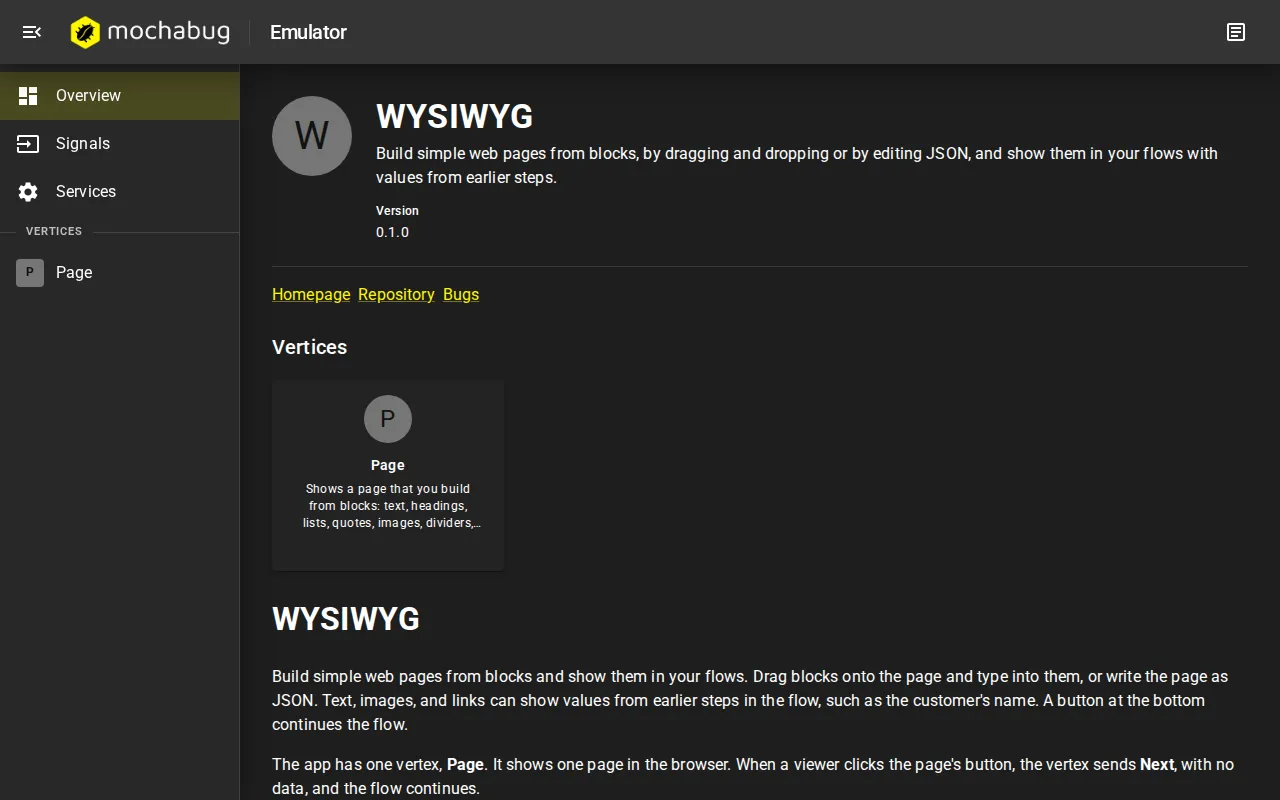
Section titled “Overview”The Overview shows your application, its vertices, and its README, the way users will see them.
Signals
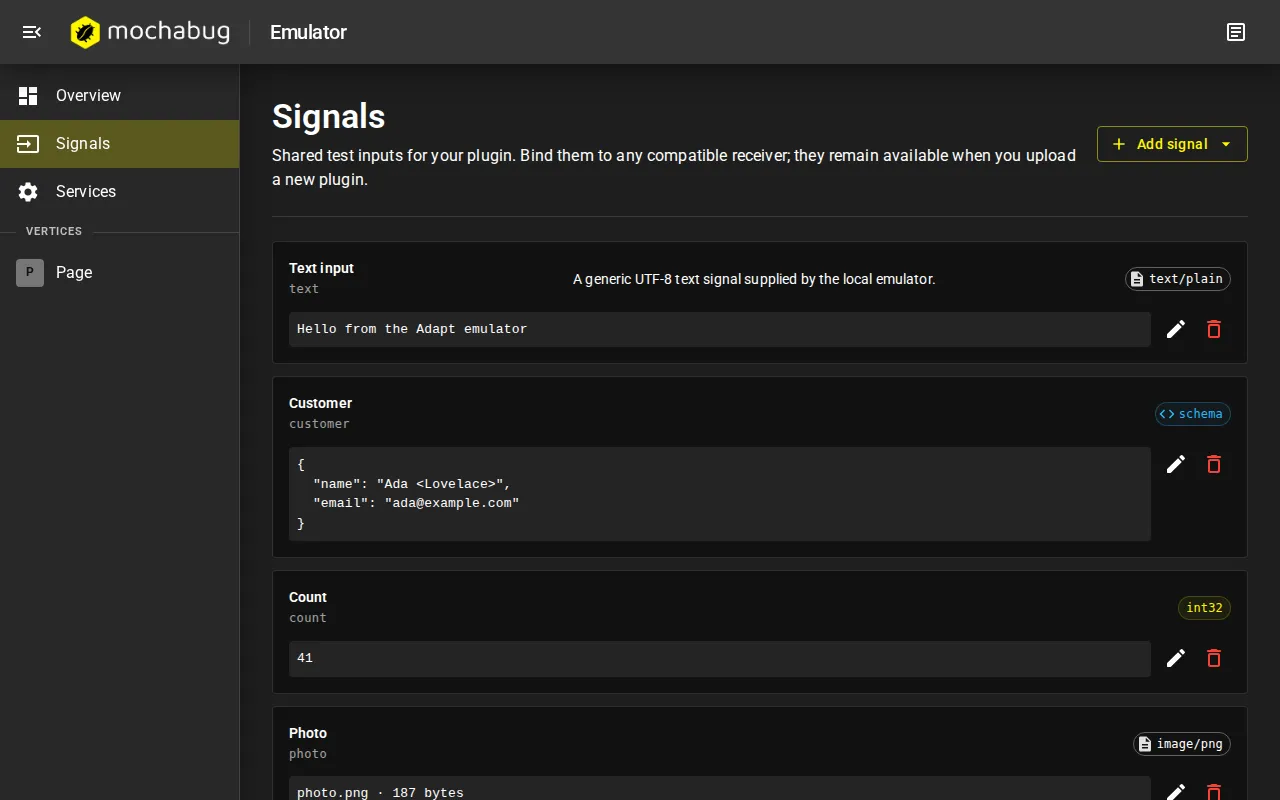
Section titled “Signals”Signals are test inputs that you bind to your vertices. They stand in for the steps before your vertex in a project. Add strings, numbers, JSON values, or files. Signals stay when you upload again.
Services
Section titled “Services”Services holds the credentials and values for your services. Saved secrets are never shown again.
Vertices
Section titled “Vertices”Each vertex has its own page, with three tabs:
- Services: choose the resource for each of the vertex’s services.
- Receivers: choose the receiver that starts the run, and bind its inputs to signals.
- Transmitters: see the vertex’s outputs.
Configure opens the vertex’s settings page. Run starts the vertex. Run is available when the required services are set, the settings page has marked the vertex complete, and the required inputs are bound.
The workspace
Section titled “The workspace”Configure and Run open a workspace, with your page on the left and an inspector on the right.
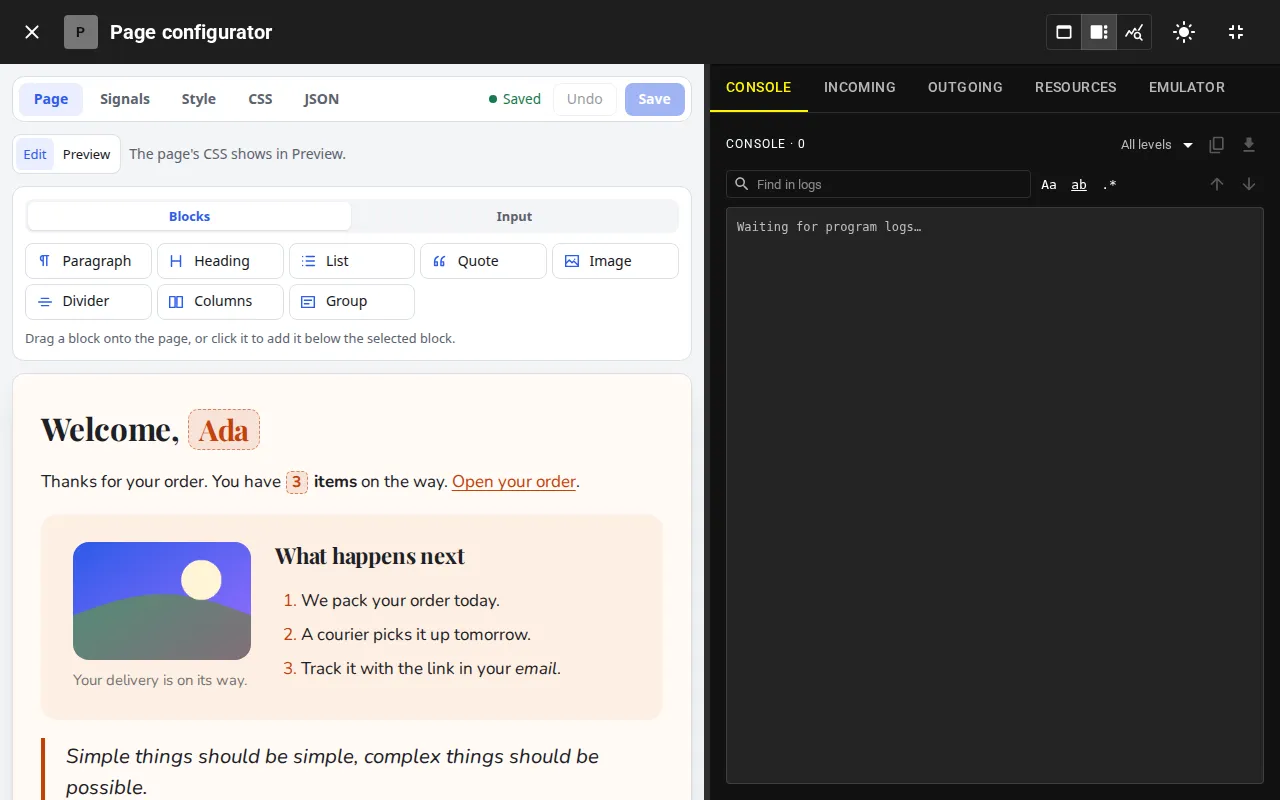
| Tab | Shows |
|---|---|
| Console | Your logs. |
| Incoming | Requests to your application, with their status, time, and memory. |
| Outgoing | Calls from your application. |
| Resources | CPU time and memory for each entry point. |
| Emulator | The outputs of the run, and errors. |
The sun button switches between light and dark. Your page should follow without a reload.
Next: Test in the emulator.
Troubleshooting
Section titled “Troubleshooting”| Problem | Solution |
|---|---|
| Docker is missing or not running. | Install or start Docker, then open a new terminal. |
| Permission denied for the Docker socket on Linux. | Follow Docker’s post-installation steps. Do not use sudo. |
| A port is in use. | Stop the program that uses port 51001, 51002, or 51003. |
| The browser does not trust the pages. | Run adaptkit emulator setup, and restart the browser. |
| The emulator does not start. | Run npm run emulator:logs to see why. |
| Outgoing calls hang. | Check name resolution in the container: docker exec adapt-emulator getent hosts api.example.com. |